Tips & Tricks
My Blog and FAQs BELOW contain handy tips that have helped many computer, iPad and iPhone users


Frequently Asked Questions – Ask Pamela
Click the Question and the Answer will drop down. Click the Question again to close the Answer.
DISCLAIMER: Computer Tutor Inc. has made every effort to supply correct and up-to-date information on this website. Prior to making any changes or additions to your computer, iPad or iPhone systems it is the readers sole responsibility to make a complete backup of all data, software, information and all other files and folders stored on these devices. Computer Tutor Inc. or any of its associates are not responsible, under any circumstances, for the loss of any data, software or files from your computer, iPad or iPhone. The external links that are provided are as a convenience and for informational purposes only. Computer Tutor Inc. does not assume and is not responsible for any liability whatsoever for the linking of any of these linked web sites.
Send me a question by clicking on the Blue Chat Box to the right.
If I am Online I will chat with you. If I am Offline it will send me an email and I will respond to you with speed!
Check the many Questions with Answers below to find Easy to Understand FAQ’s with Screenshots.
More will be added regularly! Check Back Often! Send Me Your Questions!
It’s a good idea to save important files on a “Memory Stick” also called a “Flash Drive” or “Thumb Drive” as a Backup or for transferring data from one computer to the other. There are several ways in which to do this : Drag or “Save As” your document after inserting your Memory Stick into an available USB port
A bookmark is a place holder for a web page that will allow you quick access to that page instead of having to browse to it or search for it.
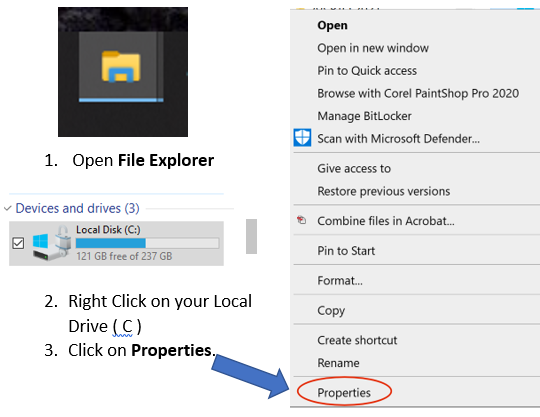
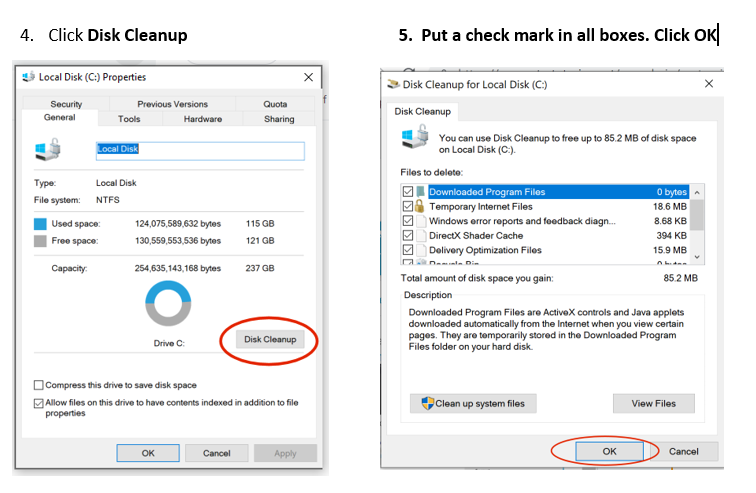
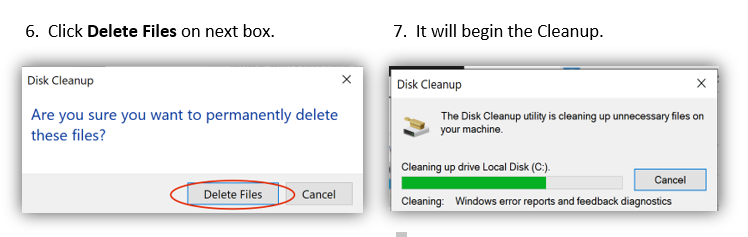
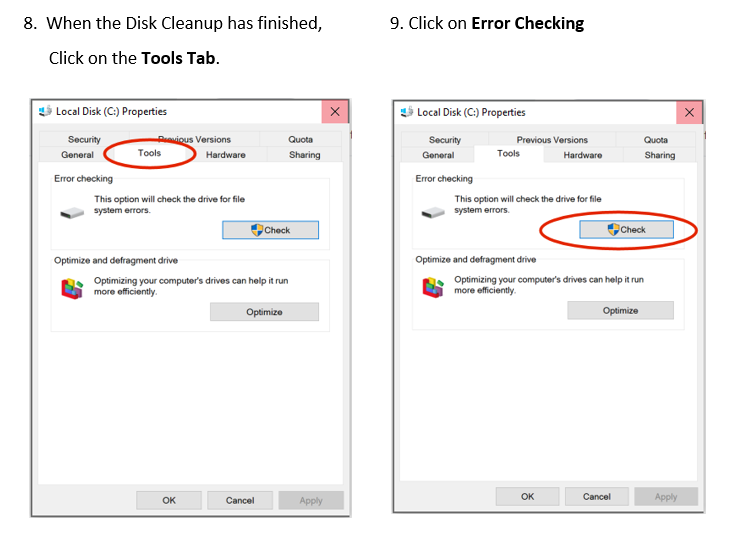
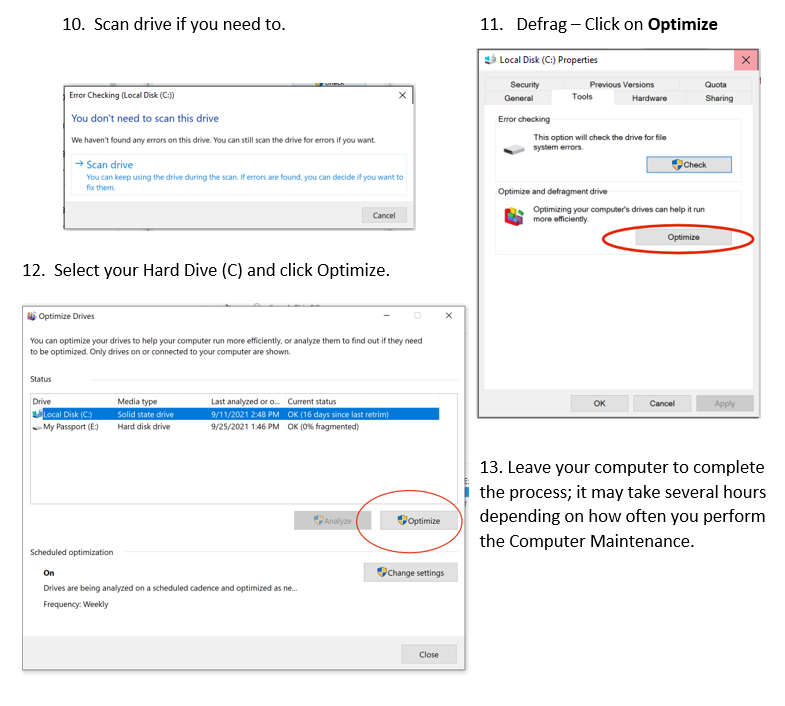
Computer Maintenance should be performed at least once a month. If you use your computer every day for many hours, you may consider to run this maintenance bi-monthly; it will enable your computer to run faster.
There are three procedures: Disk Cleanup – Error Checking and Defragmentation . These procedures should not delete any information that you have created and saved on your computer but to be on the safe side a FULL backup of all your files and folders, software and data, should be done before proceeding .
Follow the steps below on a PC with Windows 10:
Cookies are small text files sent by the website you visit, to the computer or device that you are using. If you agree to install these cookies they are stored on the web browser of your device. Cookies can then track and collect data from your browser, sending it back to the website owner.
Is accepting cookies a bad thing? It depends on the website. It depends on who will gain access to your data and what they will do with it..
I would not advise you to accept cookies when you are on an unencrypted website — a site where the lock icon beside the website address is not locked. If a website isn’t encrypted, there is no security to protect your data. This unsecure access may allow third parties like hackers to steal cookies from your browser, intercepting personal information you likely want to keep private, like credit card and other private information, leaving you more vulnerable to online crimes like identity theft.
Having a number of cookies stored in your browser could slow down your computer. Cookies occupy disk space, which can affect your computer’s speed.
Dictation uses speech recognition, which is built into Windows 10, so there’s nothing you need to download and install to use it.
To start dictating, select a text field i.e. email, Word etc., and press the Windows logo key plus the H key to open the dictation toolbar. Then start speaking. If mistakes occur just click into the text and correct them.
Not on an Apple iPhone or Apple iPad. You just need to tap the microphone icon and speak. It is usually very accurate except if you are saying unusual names.
If errors occur, tap into the text to and correct them.
Don’t forget to state punctuation i.e. period, comma, exclamation mark, question mark etc.
The fastest way to retrieve a lost email while composing is the HOLD DOWN the CTRL key while tapping the Z key. This is the shortcut for “undo” and can be used with most Microsoft software i.e. Word.
Another easy way to “undo” is to use the left facing arrow located on the “Ribbon” on Microsoft Outlook, Microsoft Word etc.
Check your DRAFT folder; the unfinished email may be there.
Of course, if you write your long or important email on the “Notes” app on your Apple iPad or Apple iPhone it will give you a place to store the email and you can send it directly from the “Notes” app when completed. The email is saved on “Notes” without your intervention until you delete it and you can also make folders in this app for future reference.
When reading online, use the wheel on your mouse to adjust the font size to make it easier to read. If printing the webpage it will not print the size you changed.
TIP: to make the font larger:
HOLD DOWN the CTRL key on a PC or Cmd on a MAC and press the PLUS key. Keep tapping the PLUS key while holding down the CTRL key until the font is a comfortable size.
To reduce the font size Hold Down the CTRL key and tap the MINUS key. Keep tapping the MINUS key while holding down the CTRL key until the font is a comfortable size.
To return to the original size Hold Down the CTRL key and hit the ZERO key.
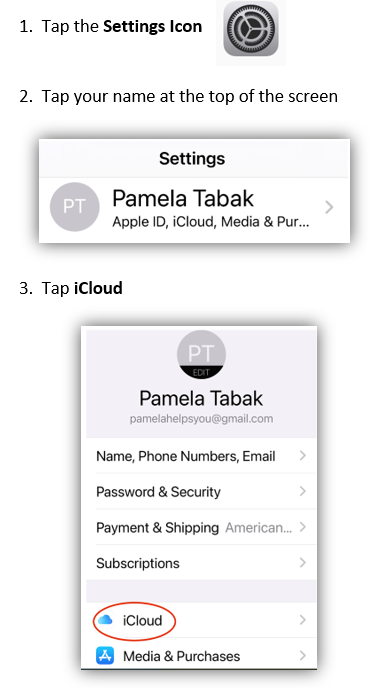
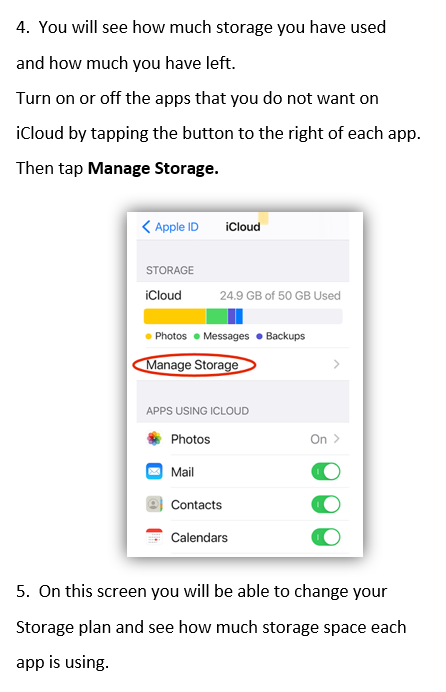
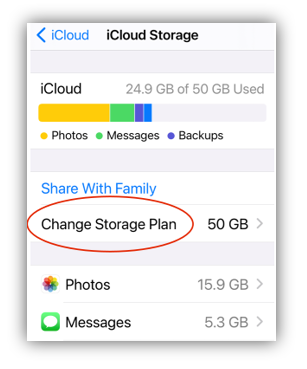
When you set up iCloud, you automatically get 5GB of free storage. You can use that storage space to back up your device and to keep all your photos, videos, documents, and text messages securely stored and updated. Depending on the size of your backup and the amount of content you keep in iCloud, you might run out of free space. You can gain room when you delete some of your content or buy more iCloud storage.
To check how much storage you have left follow the steps below:
On your Apple iPad or Apple iPhone:
If you delete an icon from your desktop it will NOT delete the program. In order to delete the program you will need to go to the “Control Panel” and delete the program from there.
There is always a possibility that a ‘hacker’ or ‘spammer’ may send emails that request your personal information so you need to be very careful about opening suspicious email. Take the extra precautions listed below which will help protect your identity.
1. Never click on any links in an email that ask for your personal information.
2. Never give your Social Security Number to anyone, especially in an email or online.
3. Never give your password or username in a reply to an email.
4. Always check the email address of the sender. In many cases you will find a mistake in the email address if it is trying to imitate PayPal, eBay or a financial institution.
5. If you receive an email from a bank that you do not do business with it is usually spam so do not click on any links that ask for your personal information. Delete the email as soon as possible and empty your ‘trash’ folder.
6. Never click on a ‘pop-up’ that tells you that you have a number of ‘viruses’ in your computer. This is probably a ‘rogue’ program which may shut down your computer or cause it to malfunction.
7. Never allow anyone, who is not known to you, to access your computer for any reason whatsoever! If you receive a call from someone who says they are from Microsoft and that you have viruses in your computer, this is a scam! In order for them to know that you have viruses in your computer, they would need to connect to your computer. If you feel you need to answer them, just say that you will get your technician to check it if you. Then close the call.
PAYPAL: If you receive an email from PayPal asking for your personal information or telling you that your account has been suspended, forward the email to [email protected] and they will verify if it is genuine or spam.
EBAY: If you receive an email from eBay asking for your personal information or telling you that your account has been suspended, forward the email to [email protected] and they will verify if it is genuine or spam.
NOTE: PayPal, eBay or your Bank will never ask you to add your personal information by clicking on links in an email.
It’s advisable to keep your Apple iPad and Apple iPhone operating system up-to-date at all times.
You will get a notification on “settings” when new updates are available; similar to the way you get update notifications on your computer, if you still use one.
If you do not download and install the updates you will not benefit from all the security files and new exciting features that it offers and your device may begin to malfunction.
In my opinion, the short answer is No! I plug my iPhone into a power source every night and leave it by my bedside in case I need it for an emergency or someone needs me. My family and friends feel good to know that I am always available in an emergency!
It also updates to the “Cloud” when plugged in to a power source and connected to WiFi.
iCloud automatically backs up your iOS device information over Wi-Fi when your device is turned on, locked, and connected to a power source. iCloud backups count toward your iCloud storage.
It is advisable to turn off your iPhone and iPad at least once a week; choose the same day each week so that you remember this important step. This refreshes the system and prevents malfunction.
If your device malfunctions, turn it off immediately and then on again and the malfunction will be cleared. This does not mean tapping the on and off button. This function only puts it to sleep. It needs to be turned off completely.
Depending on the model of your device, that means pressing the On/Off button and the Volume Down button simultaneously. Check your settings manual on your Apple device.
If you have an Apple Watch it can be located by tapping the supplied icon .
You can also use the “Find My Phone” app on both Apple iPad and Apple iPhone but the app needs to be installed on your Apple iPad and Apple iPhone in order to find its location.
To locate your lost or mislaid device, use either your Computer or other device i.e. Apple iPad and sign into your iCloud account using your email address and password on the following website: https://www.icloud.com/find
You may be asked to setup iCloud for Windows 10.
The screen on your Apple iPhone or Apple iPad will remain on if you do not change the “Auto-Lock” settings.
1. Tap on “Settings” on your Apple iPad.
2. Tap on Display and Brightness.
3. Choose the Auto-Lock option.
4. Tap on the time lapse you’d like before your Apple iPad “sleeps.” Your options are 30 Seconds, anywhere from one to five minutes and Never.
Alternatively you can press on the “sleep/wake” button on your Apple iPad or Apple iPhone which is also used to turn the unit “off and on.”
Just click or tap into the place where you intend to type i.e. an email, Word Document etc. You need to be in a place where text can be written in order for you to make the cursor visible.
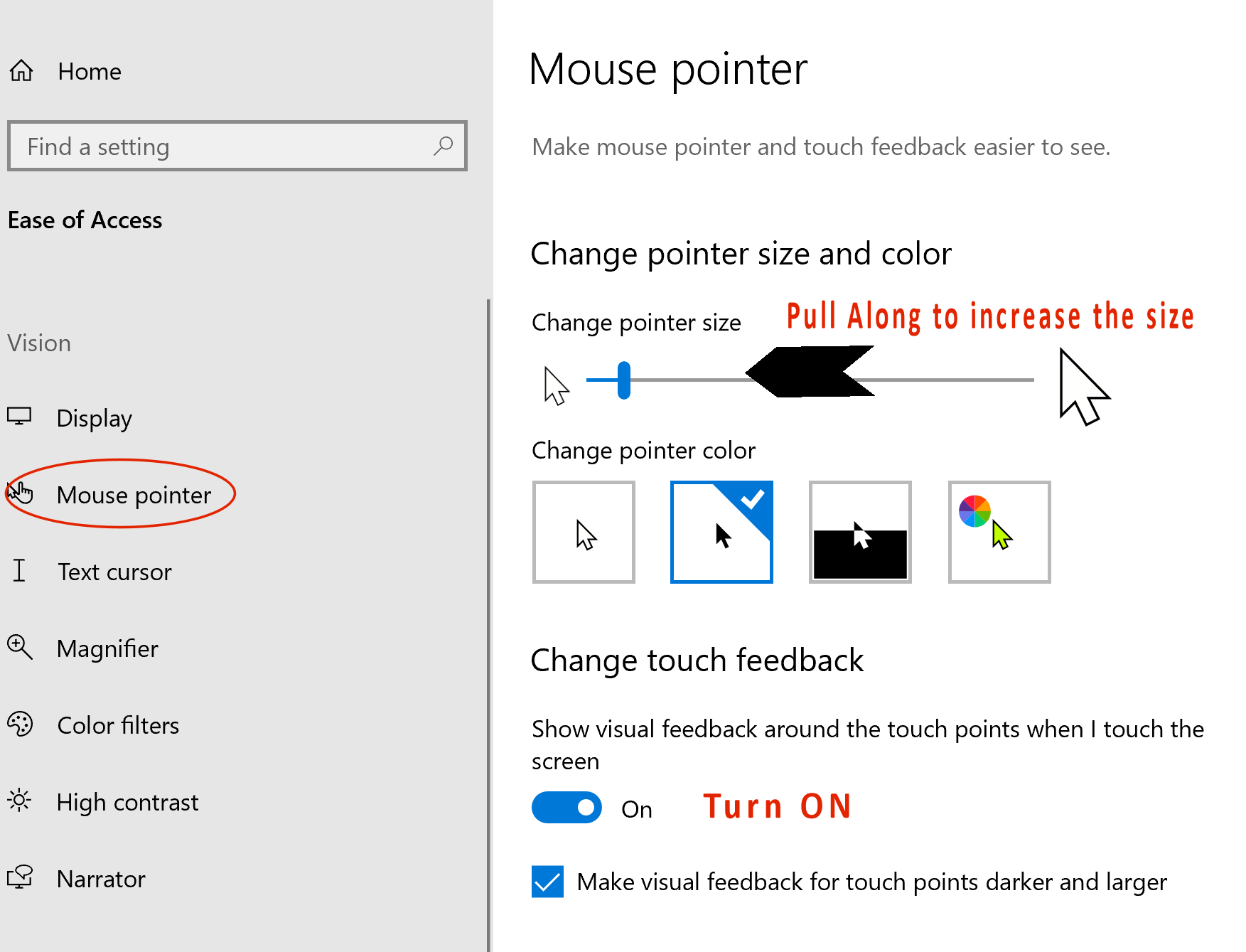
See: How can I make the mouse pointer bigger? for more adjustments to the mouse and cursor.
Clicking the Start button, click “Control Panel” or type Control Panel in the Search Bar, click “Ease of Access”, click “Ease of Access Center” and then click “Change how your mouse work.”
Select the options that you want to use in the screenshot below:
Change the colour and size of mouse pointers. You can use these options to make the mouse pointer larger, or change the color to make it easier to see.
Scroll down to Mouse Settings for more options.
In order to make a secure password you need to make sure that it cannot be deciphered by online hackers or anyone that has access to your computer. It’s crucial to pick strong passwords that are different for each of your important accounts and it is a good idea to update your passwords regularly. Follow these tips to create strong passwords and keep them secure.
• Use a unique password for each of your important accounts like email and online banking.
• Choose a sentence that you will remember and use the first letter of each word, making sure that you include at least one number, a symbol and upper and lowercase letters.
• Don’t use family names, birthdays, phone numbers, street addresses because cyber criminals or other family members may be able to decipher them.
• Keep your passwords in a safe place, out of sight and in a place that you will remember or just memorize your sentence. You might like to create a list on an EXCEL Spreadsheet but remember to “password protect” the spreadsheet.
• Don’t share any of your passwords with other computer or iPad users.
Use a phrase to create a secure password that you can customize for each website you visit.
Example for your online banking: My four children are very loveable.
Your Password is: M4cRvL$$
Placing the double dollar symbols at the end of your password will remind you that this password is for entering your online banking. Using upper and lowercase letters, a number and symbols makes your password more secure.
Use a sentence to create a secure password that you can customize for each website you visit i.e. for Amazon. Then add symbols or letters that identify the site to make it easier for you to remember without writing it down. Adding #AZ to the end or the beginning of the password makes it much more secure and more difficult for others to guess.
Remember to keep all your passwords a secret!
A PDF (Portable Document Format) is a file format developed by Adobe as a means of distributing compact, secure documents. A PDF document may contain images and text, as well as hyperlinks. Most documents and pictures can be saved as PDF files and sent securely as attachments to an email. When received by your recipient they are not able to alter the content as they can in a Word or Excel spreadsheet unless it is password protected and you share the password with them.
following the steps below:
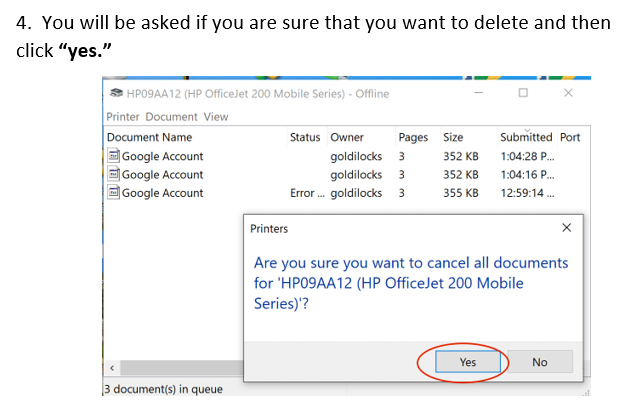
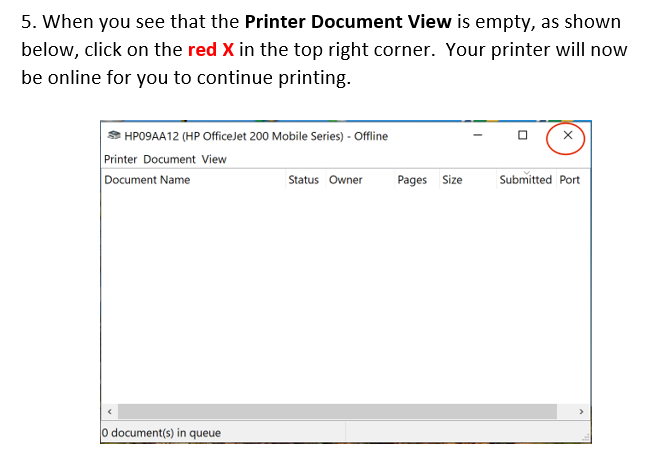
It’s always a good idea to save your work every ten minutes when working on a document especially if it is a lengthy document.
There is a quick way to do this using a ‘shortcut.’
Hold down the CTRL key and click on the ‘S’ key.
TIP: If you want to be sure that your document or email doesn’t get deleted while you are typing, open your NOTES app on your iPad or iPhone and type there. If you are composing an email you can send it from the NOTES app without copying and pasting to your email program. The NOTES app saves your document or email automatically without an extra step from you.

The fastest way to scan is to download the HP Scan and Capture software and it does it all for you, scanning your document or photo into your computer and then you can save it to a folder.
Once saved, you can attach it to an email and send it to your recipient. The following link will bring you to the Microsoft website to download the software.
https://www.microsoft.com/en-ca/p/hp-scan-and-capture/9wzdncrfhwl0?activetab=pivot:overviewtab
You can also scan and save documents or pictures to your Apple iPad by using the NOTES app. This is a great way to save all your documents or receipts while on the go to use for future use especially important receipts like the Apple iPad or Apple iPhone purchase receipts.
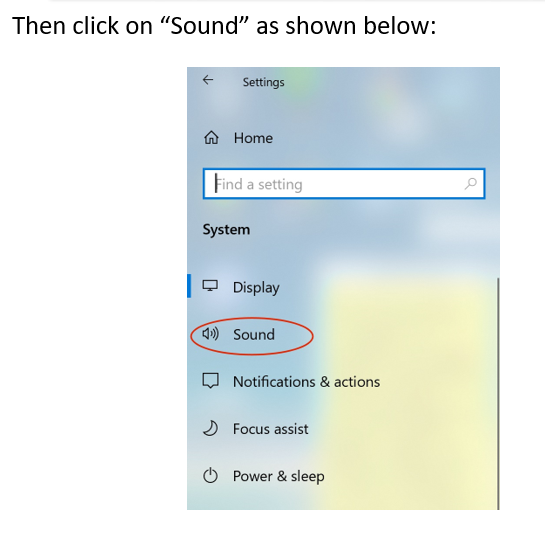
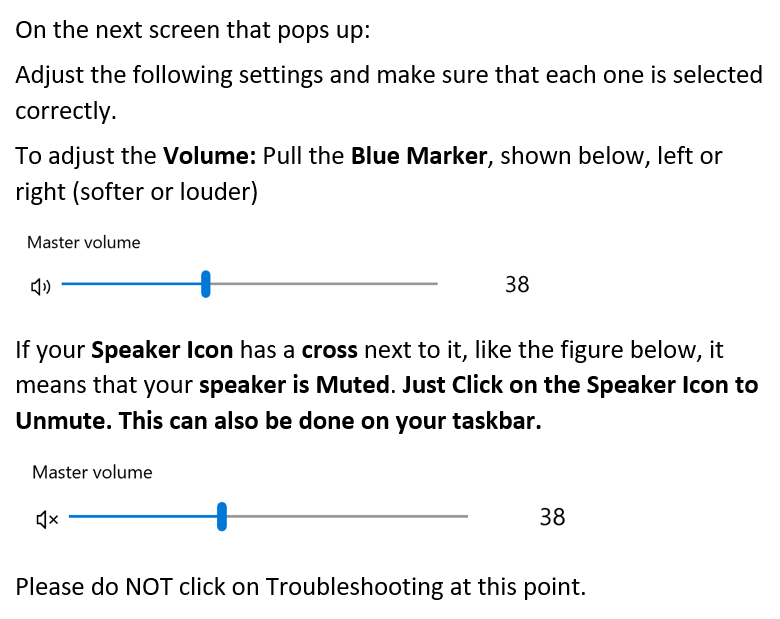
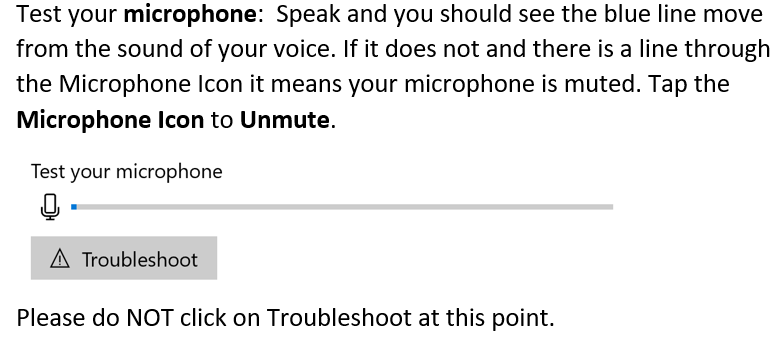
The short answer is that using sender blocking to stop spam is a waste of your time and effort. This is because the “spammers” never send emails from the same address. You may receive the exact same email and subject line but the email address will always be different!
The “block” feature looks for the email address to block but the “Spam” feature looks for the subject line and/or the content. Therefore, when you receive the unwanted emails in Microsoft Outlook, right click on them and choose “move” instead of “block.” Then choose “spam” folder.
The emails may still arrive for a little while until your software gets used to the emails you are moving to the “spam” folder but eventually they will stop. Just remember to EMPTY your “Spam” folder at the end of each day before you close down your computer.
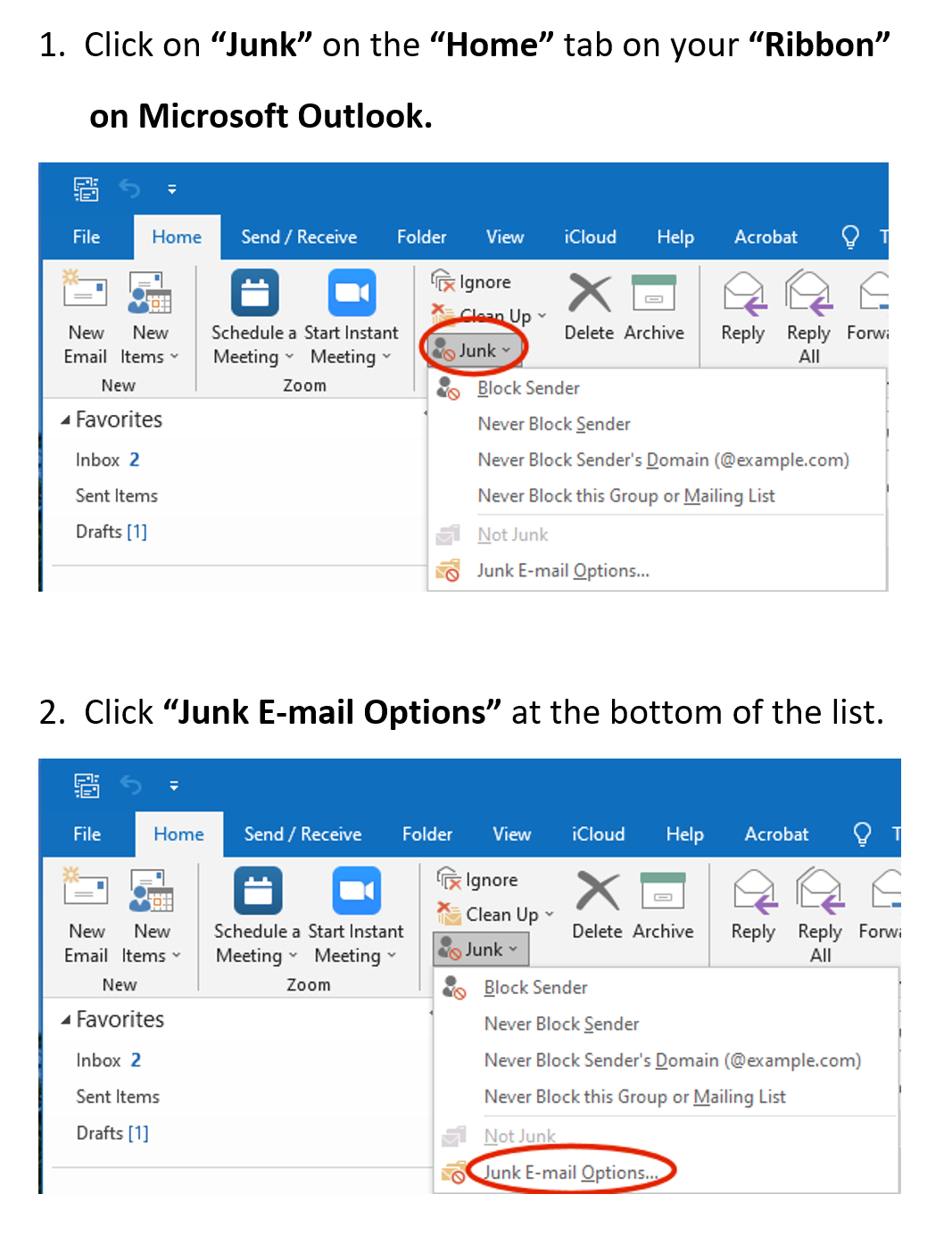
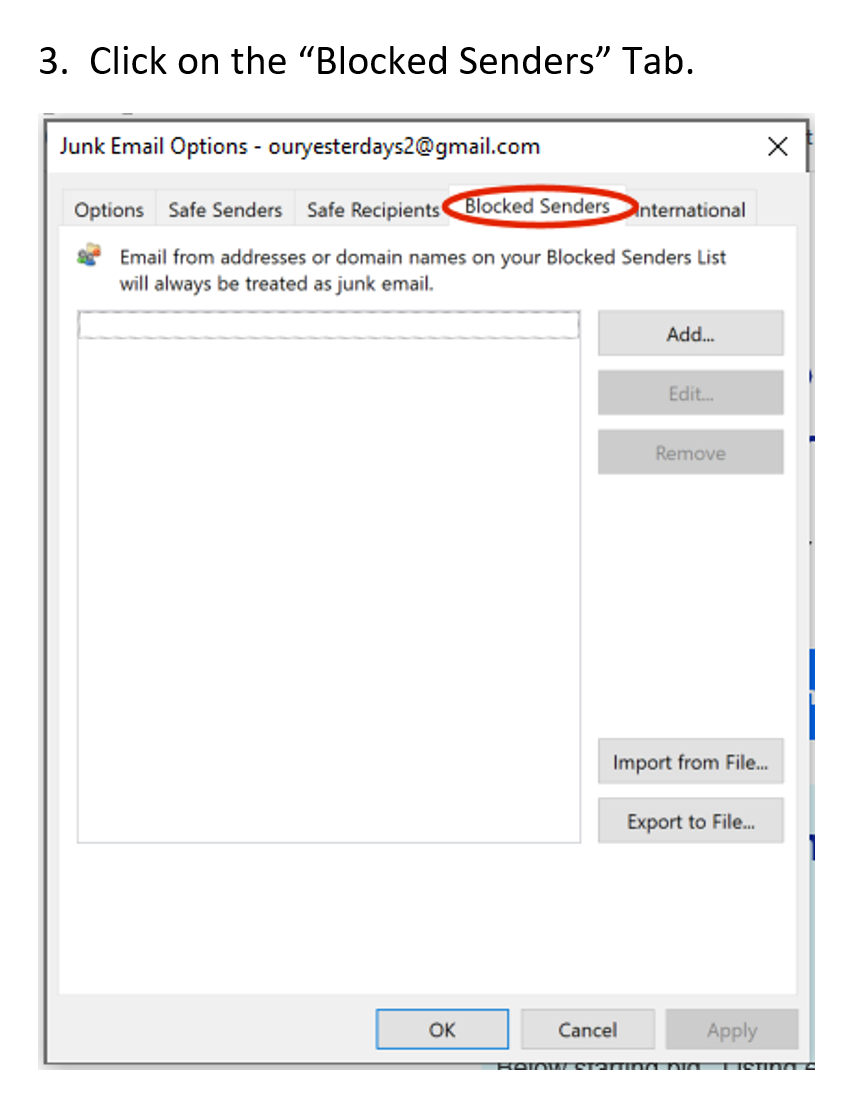
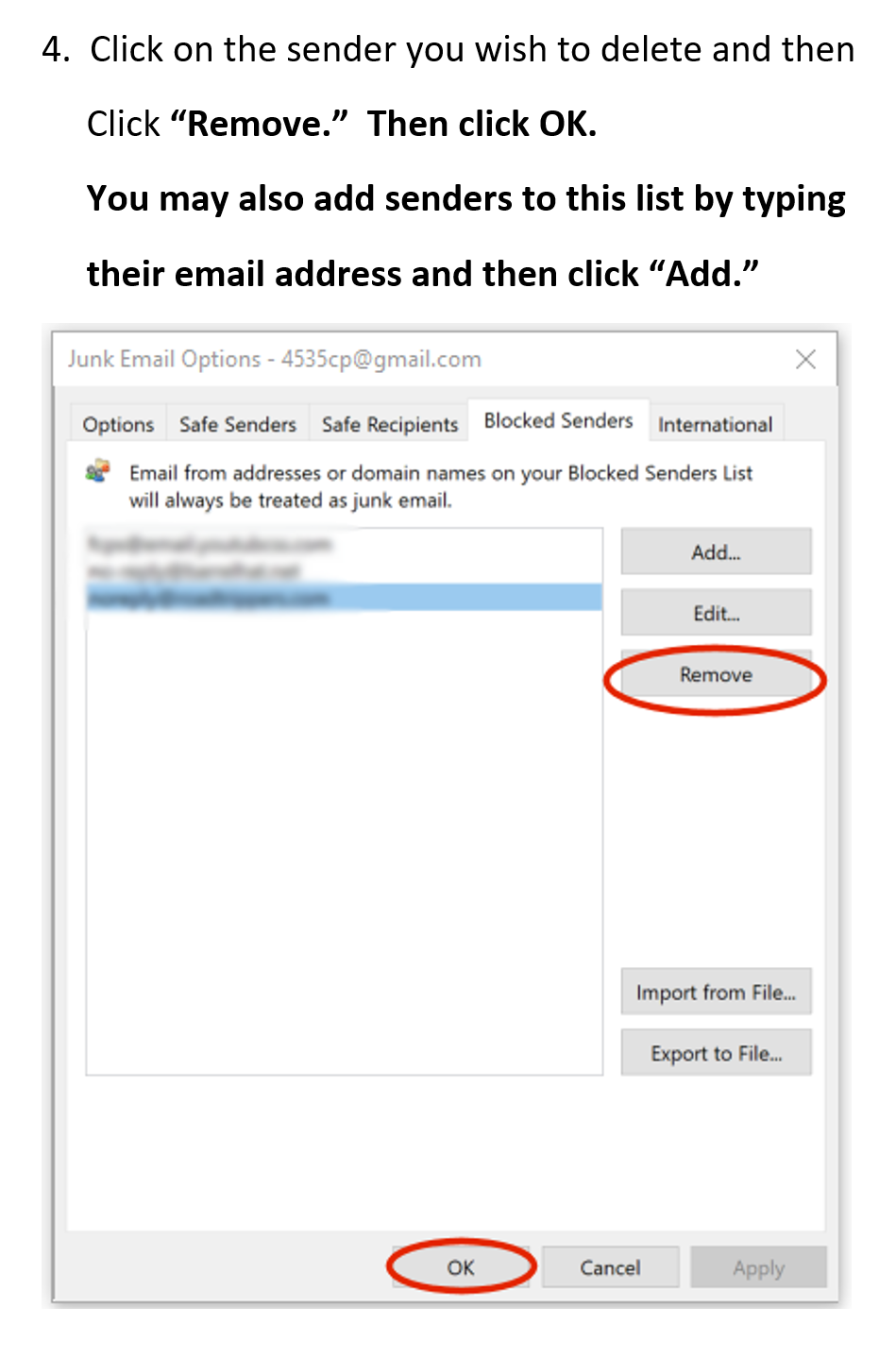
Then what is the Blocked feature good for? This feature is perfect when you have an email address belonging to someone or a company you know that you wish to block i.e. an unwanted known company or an unwanted known person that keeps emailing you. Since you wish to block the email address, the “block” feature is the one to use. You may unblock it at anytime by following the steps below: